
How it works
One day, step by step.
You set the limits. When the time runs out, your child can answer short questions to earn a bit more. This page shows what each of you sees at every step.
A day with Binadu
From the limitto the extra minutes.
This is one ordinary day with Binadu. Each step shows what happens, what you see in the Parent Portal, and what your child sees on the phone.
Real screens from sample families. Parent and child screens were captured separately, so names and numbers differ.
Step 1: You set the limits.
You approve your child’s phone with a code and choose which apps use screen time. Then you set the daily allowance, the bedtime and how much time learning can add.
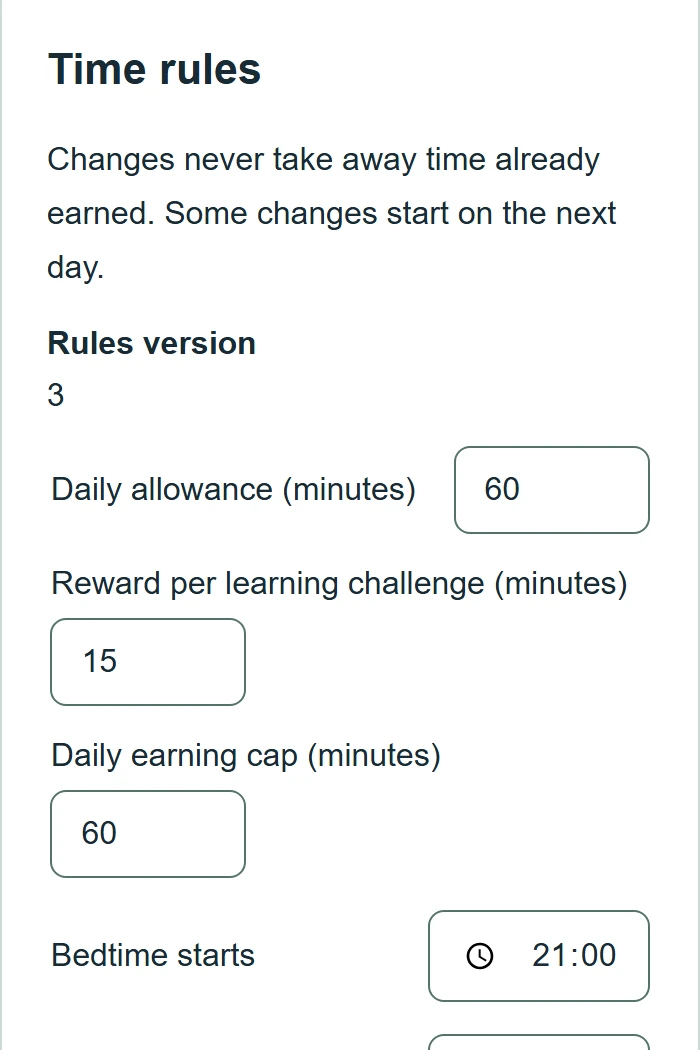
Time rules 
Home screen - You see
- Time rules: daily allowance, reward per challenge, daily earning cap and bedtime.
- Your child sees
- How much time is left today, right on the home screen.
Step 2: Your child uses their time.
Your child uses the apps as usual. Only the apps you chose count against screen time. Calls, texts and emergency apps are always available.
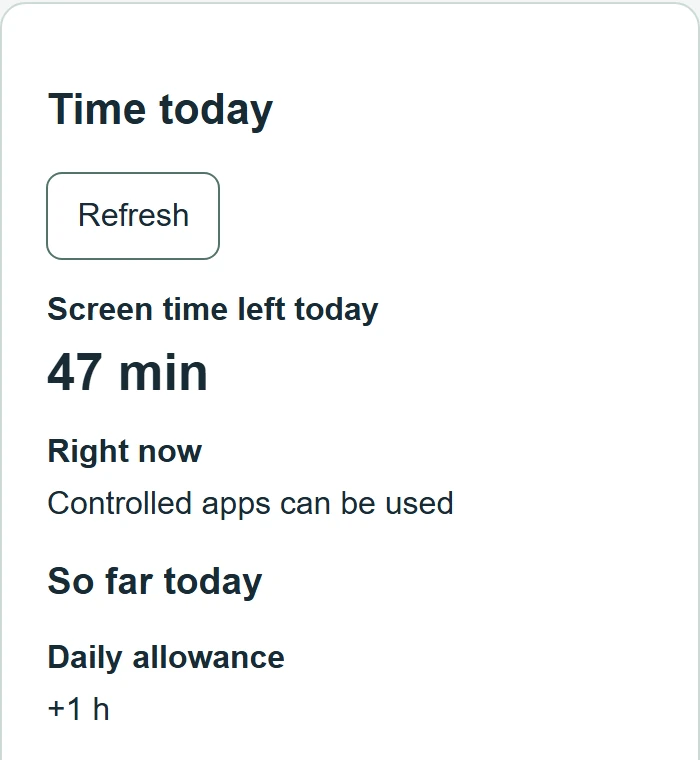
Time today There is no Binadu screen at this step, because your child is in their own apps. A notification on the phone shows that Binadu is active.
- You see
- Screen time left today, and whether limited apps can be used right now.
- Your child sees
- Their own apps, as usual, and a visible “Binadu is active” notification.
Step 3: Time is up.
When today’s time is used up, the limited app closes and your child is back on the phone’s home screen. The limits apply to apps. Websites in a browser are not blocked.
Protection 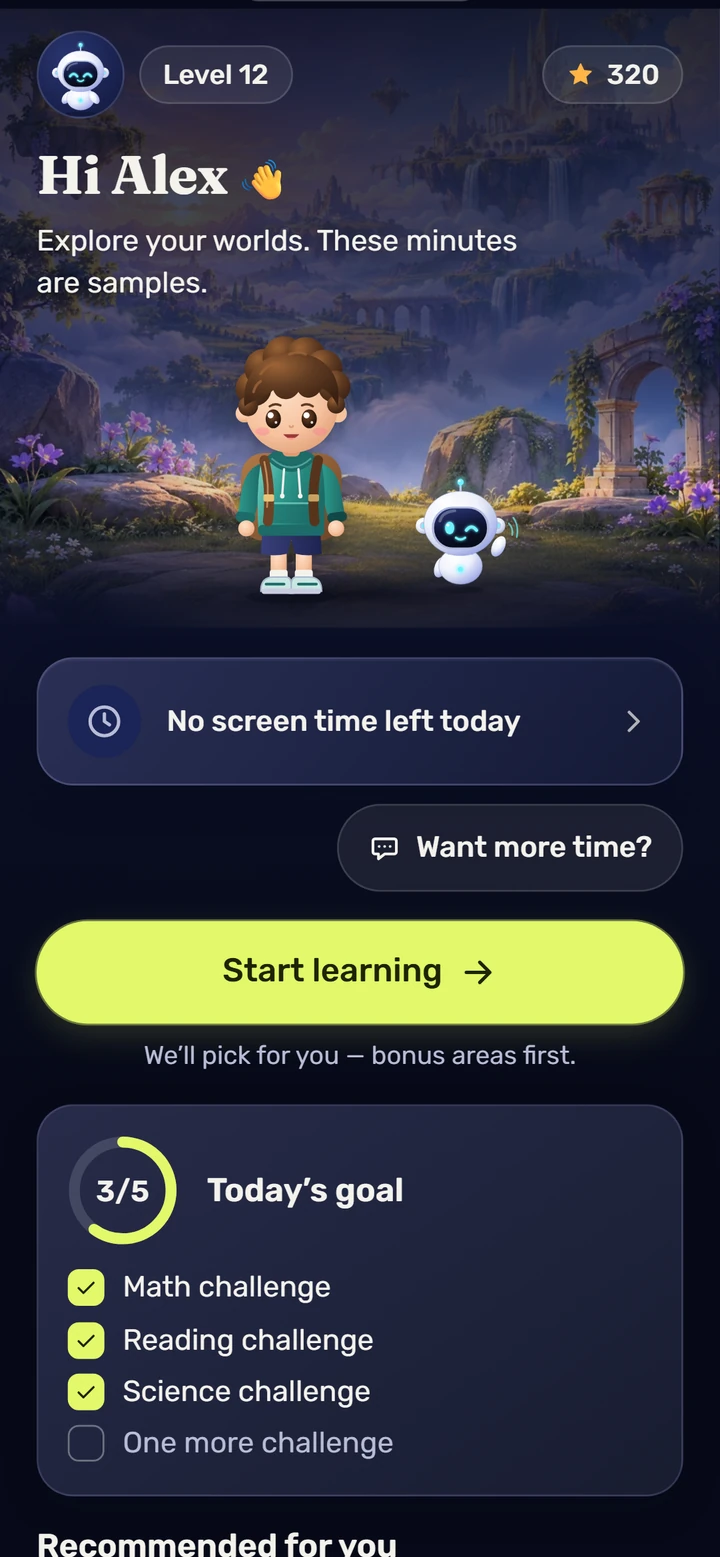
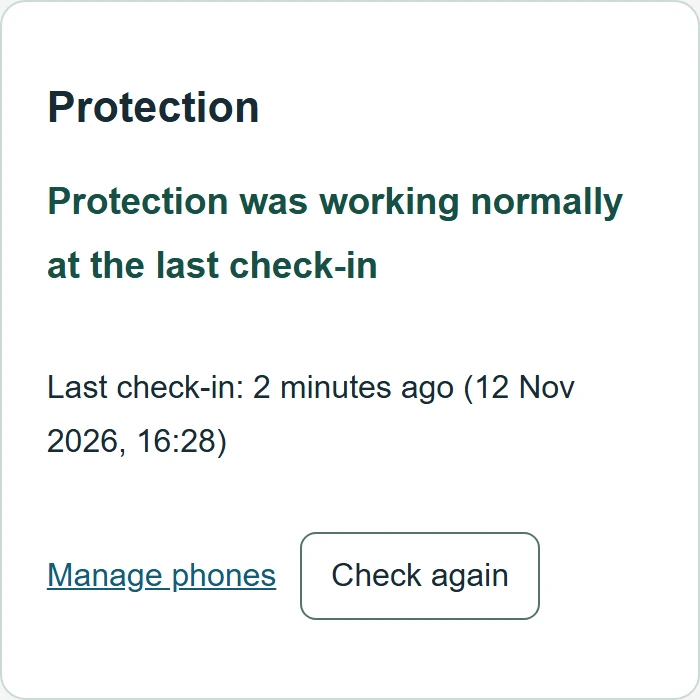
No time left today - You see
- Whether protection was working at the phone’s last check-in.
- Your child sees
- “No screen time left today”, with a way to start learning or ask for more time.
Step 4: Your child can choose to learn.
If your child wants more time, they can pick a short learning activity from the subjects in your learning plan. Learning is offered, never required.
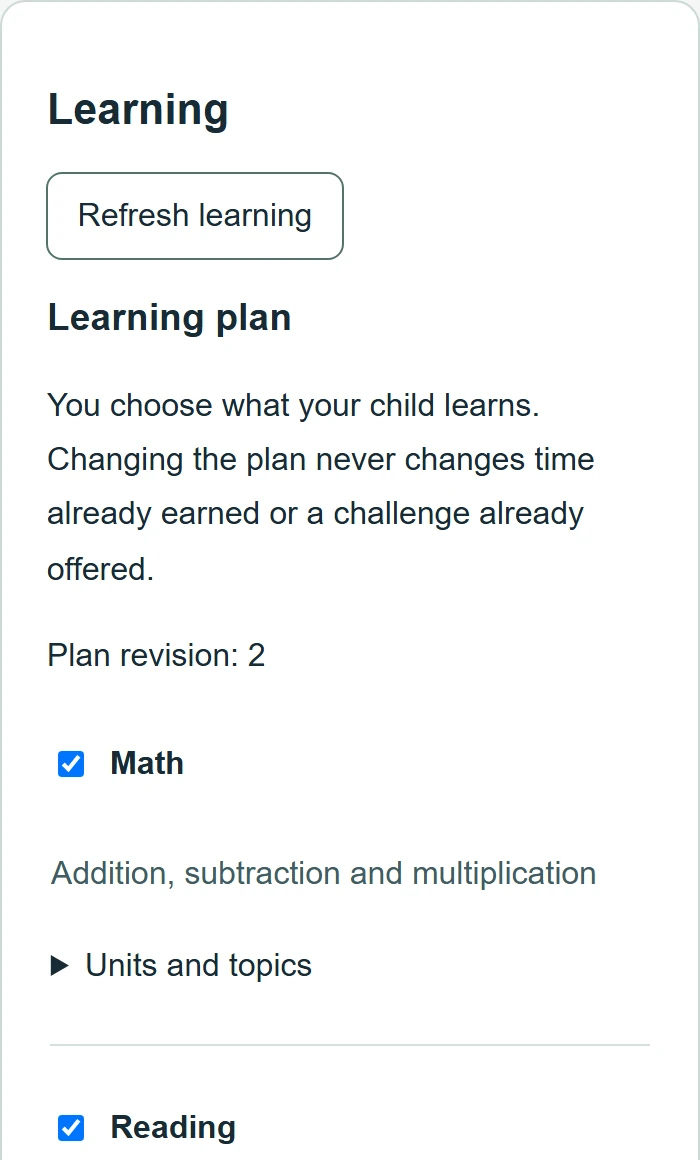
Learning plan 
Learning journey - You see
- The learning plan: which subjects your child can choose.
- Your child sees
- A map of subject worlds to choose from.
Step 5: The activity is done.
The questions are short and reviewed, and there are hints if your child needs them. A wrong answer, a hint or giving up never takes time away.
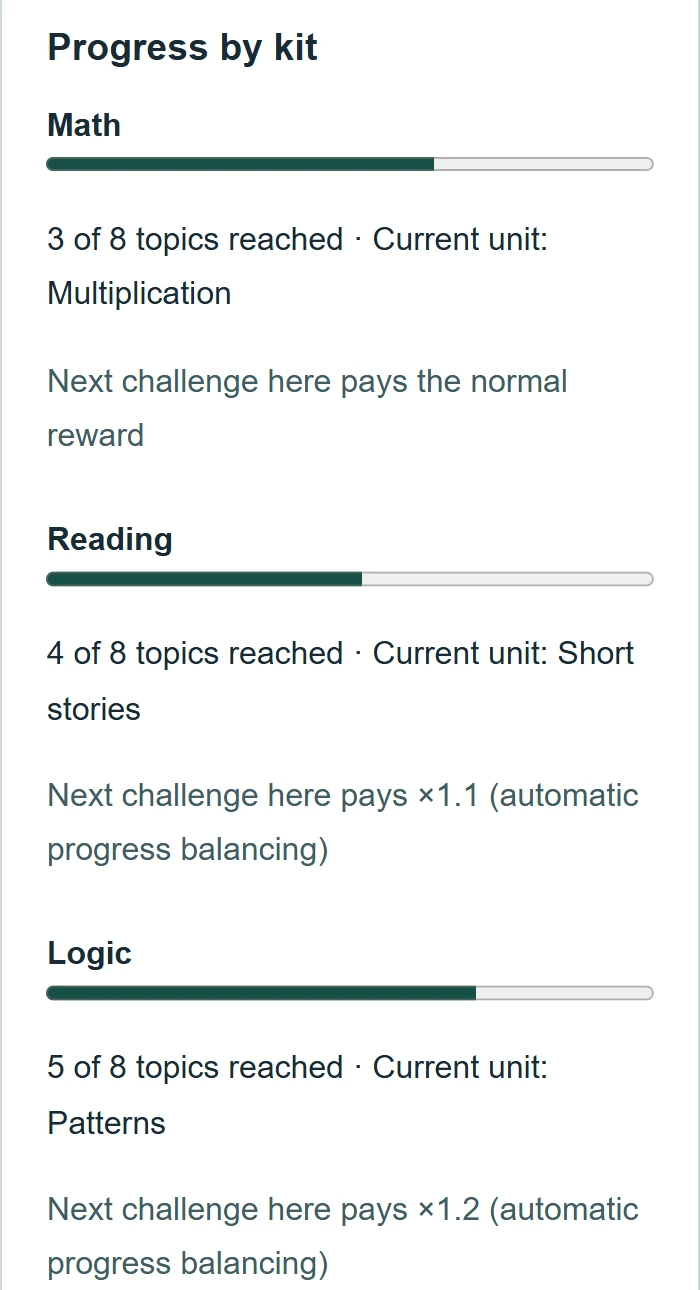
Progress by subject 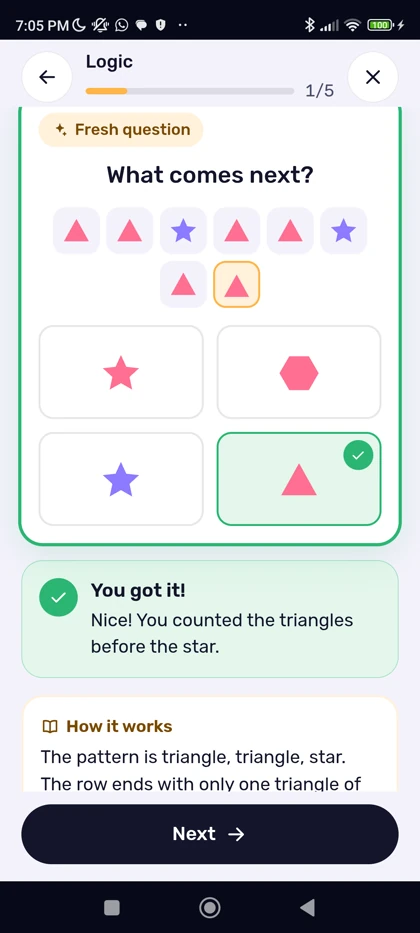
Correct answer - You see
- Progress in each subject and the current unit.
- Your child sees
- Whether the answer was right, and a short explanation.
Step 6: Extra time is added.
A correct answer adds extra minutes, up to the daily earning cap you set. Earned time is for today only. It isn’t saved for another day.
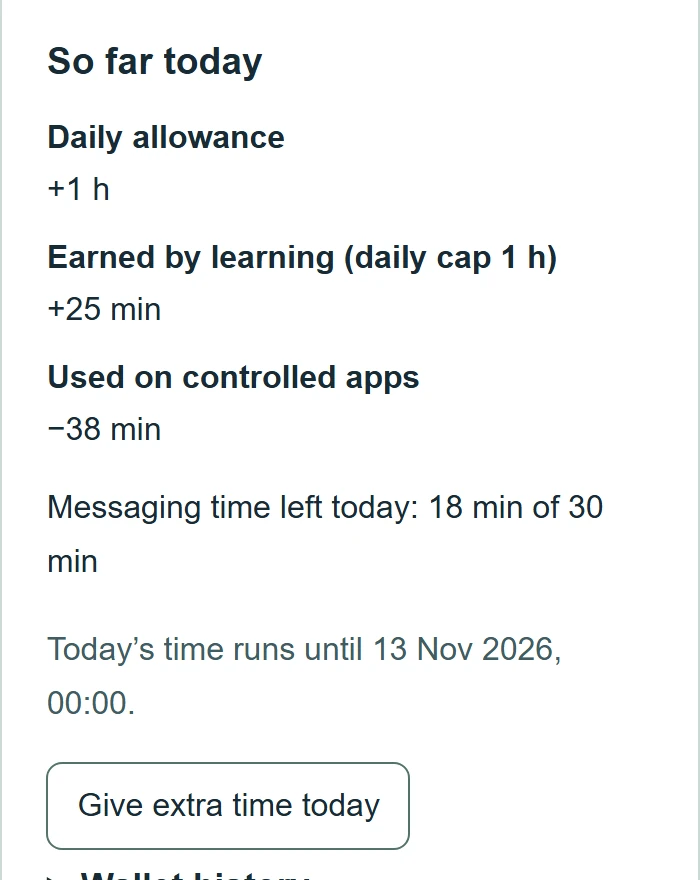
Earned today 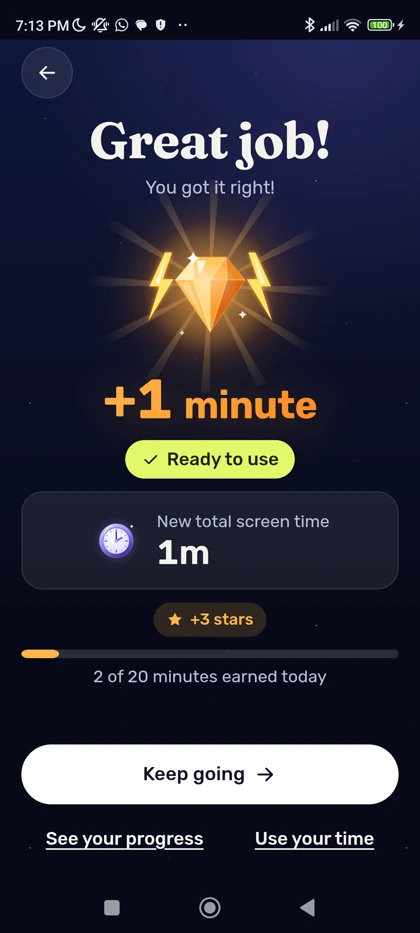
Reward - You see
- Minutes earned by learning against the daily cap, and when today’s time ends.
- Your child sees
- The minutes they earned, ready to use today.
Limits apply to the apps you choose. Websites in a browser are not blocked.
Requests & approvals
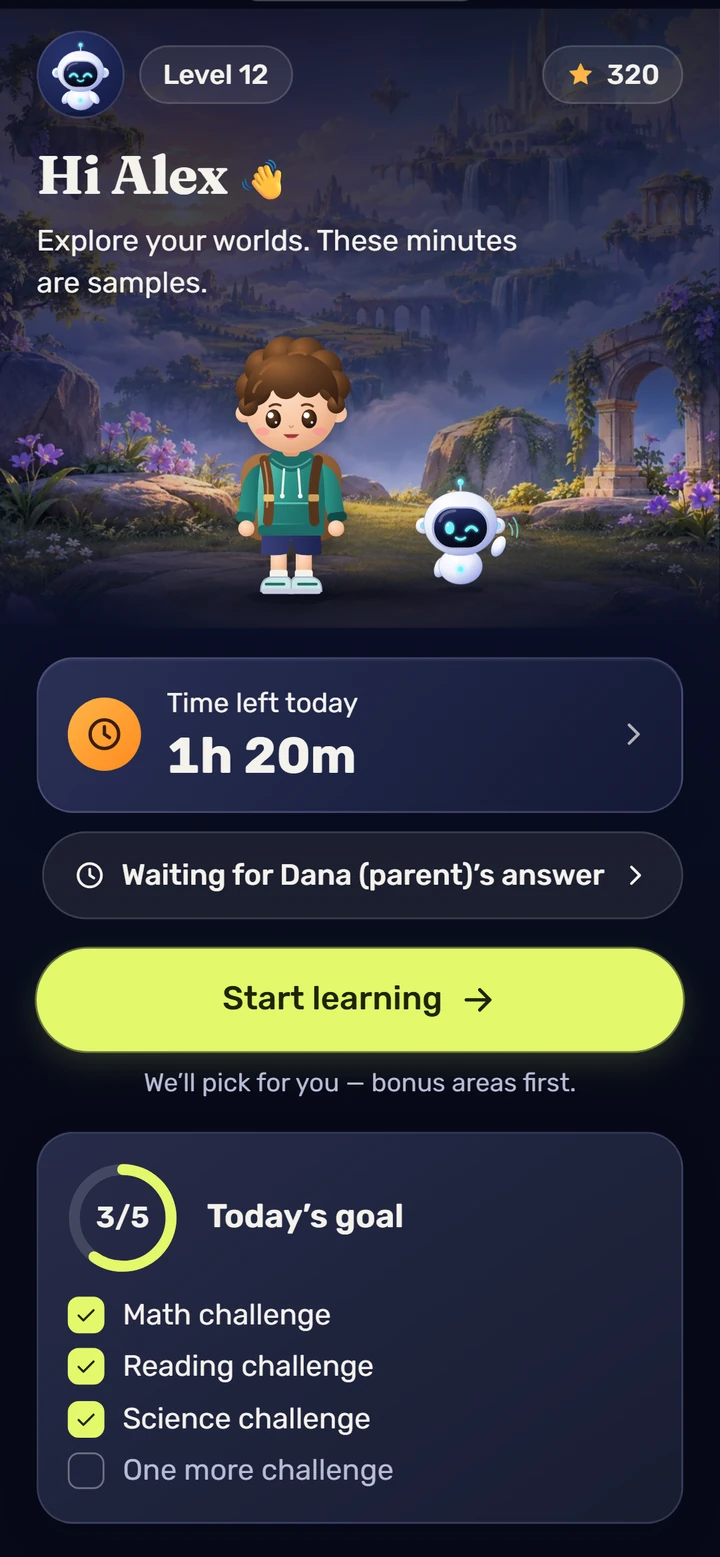
Your child can ask for more time.
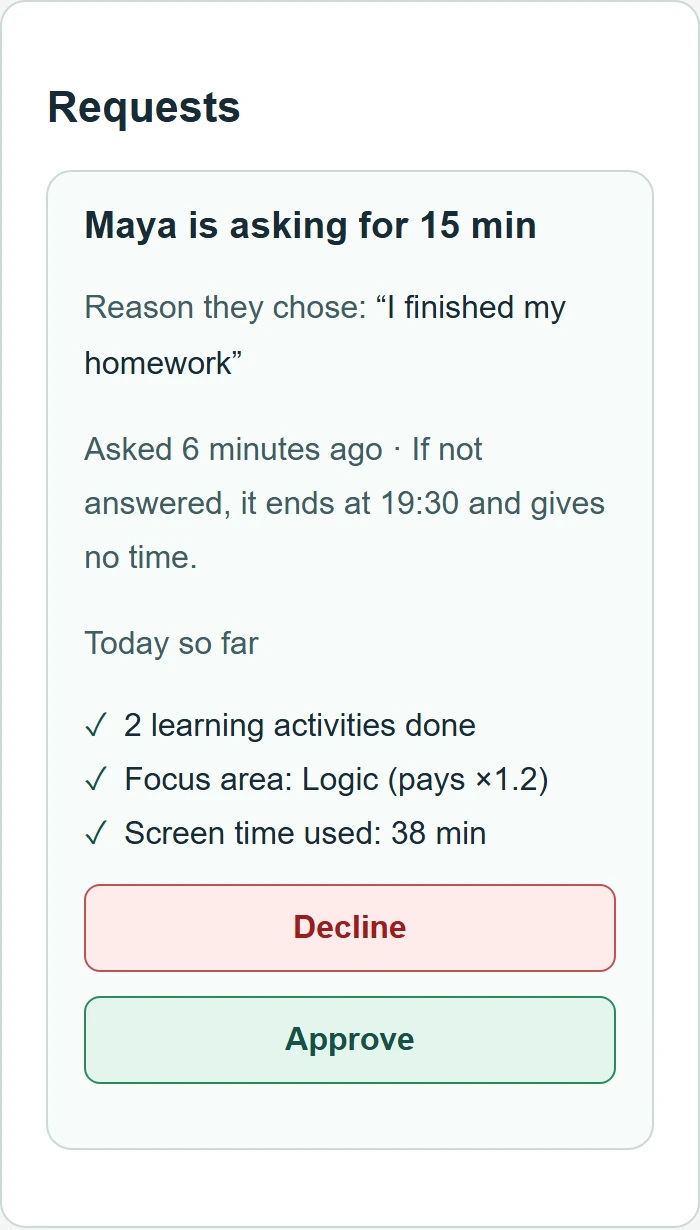
Your child chooses how much time to ask for and picks one reason from a short list. They never type a message. You decide in the Parent Portal.
Reasons a child can choose
- I finished my homework
- I want to finish what I started
- It’s for school
- To talk with family or friends
- Something else
- You approve or decline. Waiting never adds time on its own.
- A request that isn’t answered expires and gives no time.
- You can also give extra time today, without a request.
Every day
What stays the same every day.
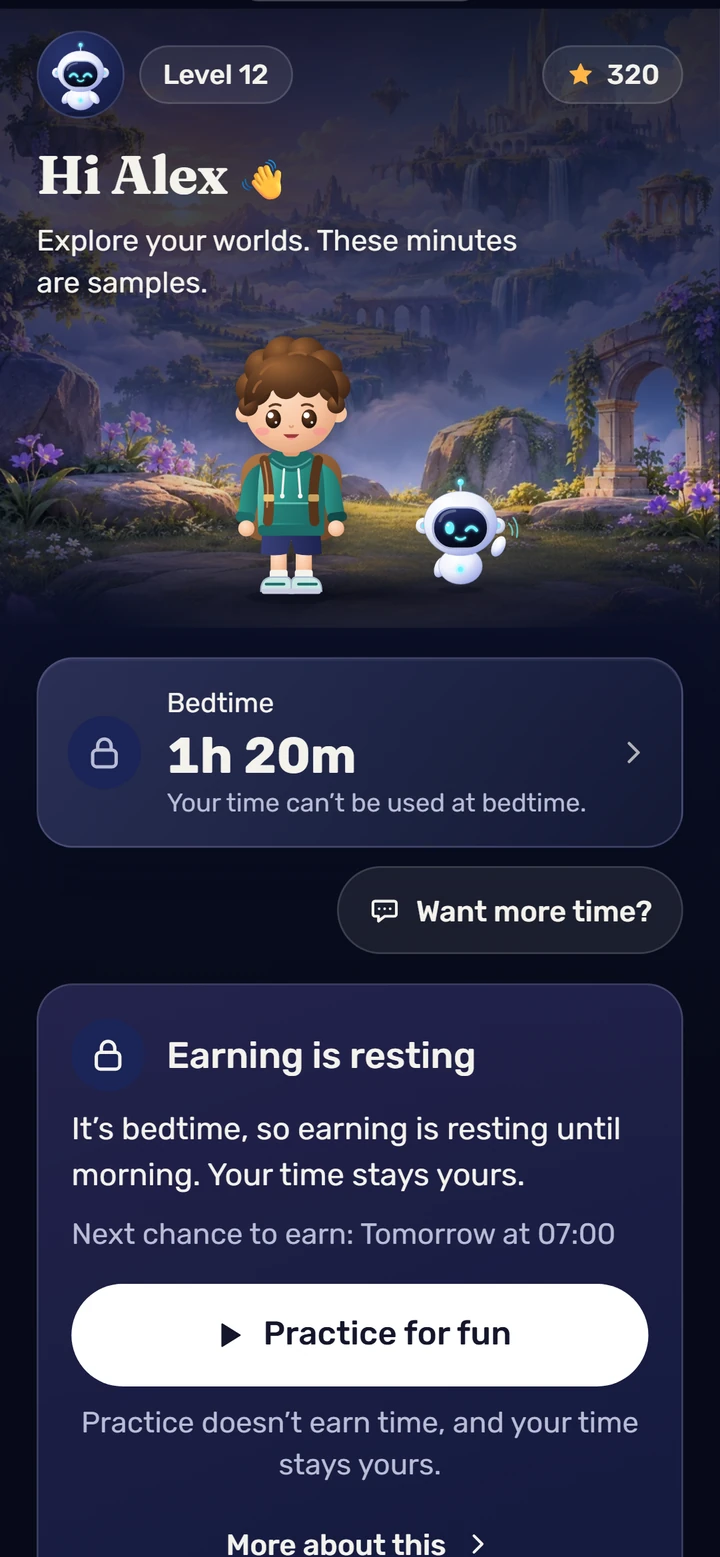
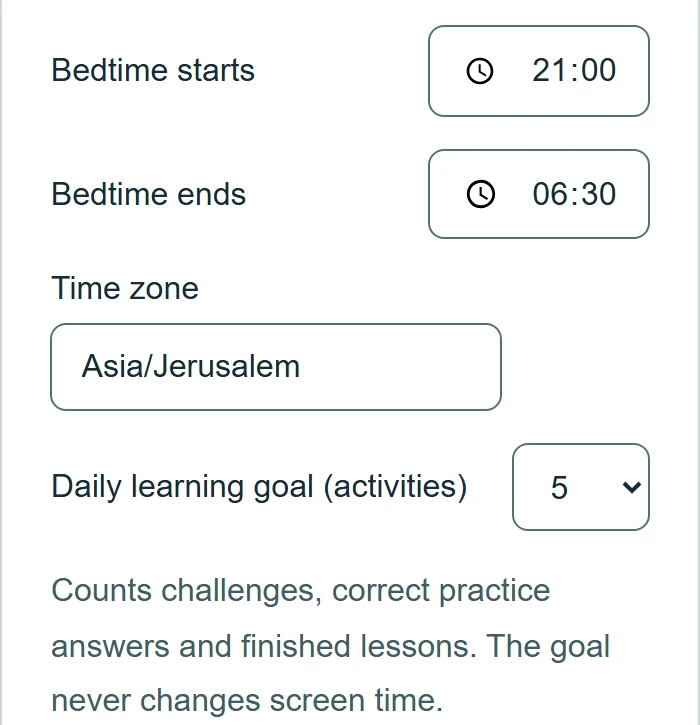
Each day has a daily allowance, a bedtime and a learning goal. At bedtime the limited apps close, and your child can’t earn time until morning.
- Early access
Daily allowance
Screen time for the apps you choose, reset every day.
- Early access
Bedtime
Limited apps can’t be used between the times you set.
- Early access
Daily learning goal
A number of activities to aim for. It never changes screen time.
- Planned
Weekly schedules and routines
Different days, homework-first routines and similar plans.




Want to try itwith your family?
Binadu is in early access for families with an Android phone.
Get early access